Monday, June 30, 2014

SharePoint 2013 + Error loading navigation: The Managed Navigation term set is improperly attached to the site.

Error: Error loading navigation: The Managed Navigation term set is improperly attached to the site.

I got below error when I created terms and term sets In SharePoint 2013 site collection , also I'd  set to use Managed Metadata Term Set as a Site Navigation.  This will set the Metadata termset as site collection navigation by overriding the Default GLOBAL/Current navigation, So you will get below error.


Solution:
  1. Go to Site Settings > Navigation
  2. Select the "Structural Navigation" for Global and Current navigations.

Wednesday, June 25, 2014

HTPP Error 500.19 "Protocol Mapping" While hosting a WCF service in IIS

When you create a WCF service with VS 2013.And when you try to browse the .svc file it gives you the following error:
"The configuration section 'protocolMapping' cannot be read because it is missing a section declaration"

Error Summary

HTTP Error 500.19 - Internal Server Error

The requested page cannot be accessed because the related configuration data for the page is invalid.

Detailed Error Information
ModuleIIS Web Core
NotificationUnknown
HandlerNot yet determined
Error Code0x80070032
Config ErrorThe configuration section 'protocolMapping' cannot be read because it is missing a section declaration
Config File\\?\C:\inetpub\wwwroot\test\web.config
Requested URLhttp://localhost:11\test.svc
Physical Path
Logon MethodNot yet determined
Logon UserNot yet determined
Config Source
   25:     
26: 27:
Links and More Information This error occurs when there is a problem reading the configuration file for the Web server or Web application. In some cases, the event logs may contain more information about what caused this error. View more information »


Solution: 
You need to ensure that the app Pool you are using for the IIS site is setup to use .net 4, because protocol mapping is only available in .net 4. By default it is set to V2.0

Hope this helps

Monday, June 23, 2014

"Script Editor Web Part" -- A new webpart in SharePoint 2013 for CMS for "Iframes"

Here is the good and new web part introduced in SharePoint 2013 for CMS developers, Especially when you want to deal with "iFrames" to display videos or images in SharePoint pages. Or you can share YouTube videos on your SharePoint site by just copying the iFrame link and past in script editor webpart.

First, you need to add the site domain in "HTML Field Security", then it will allow you to embed into content editor.   But this is not enough to support iFrames,  if you want to add iFrames, so here is new web part called Script Editor Web Part, this should address this .

See the below example for adding YouTube video or your own video which is embedded in iFrames and show in your SharePoint 2013 site.

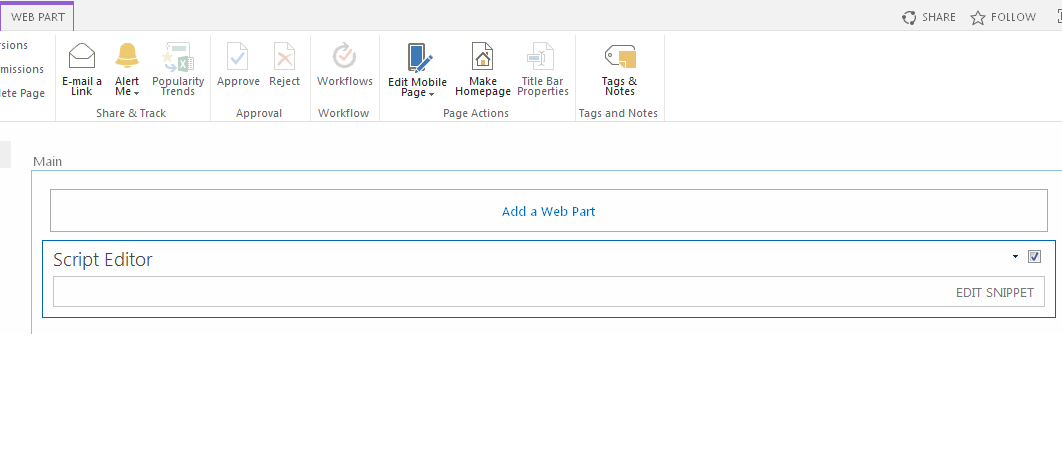
1.Add Script Editor web part from the gallery to your SharePoint page.


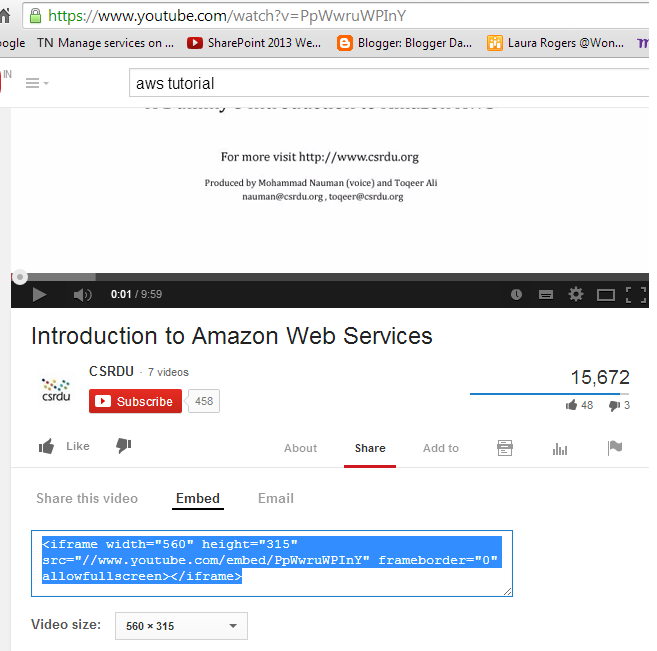
  2. Open youtube video and click on Share, then click on Embed, you can see iFrame tag in the box., Copy the tag. 

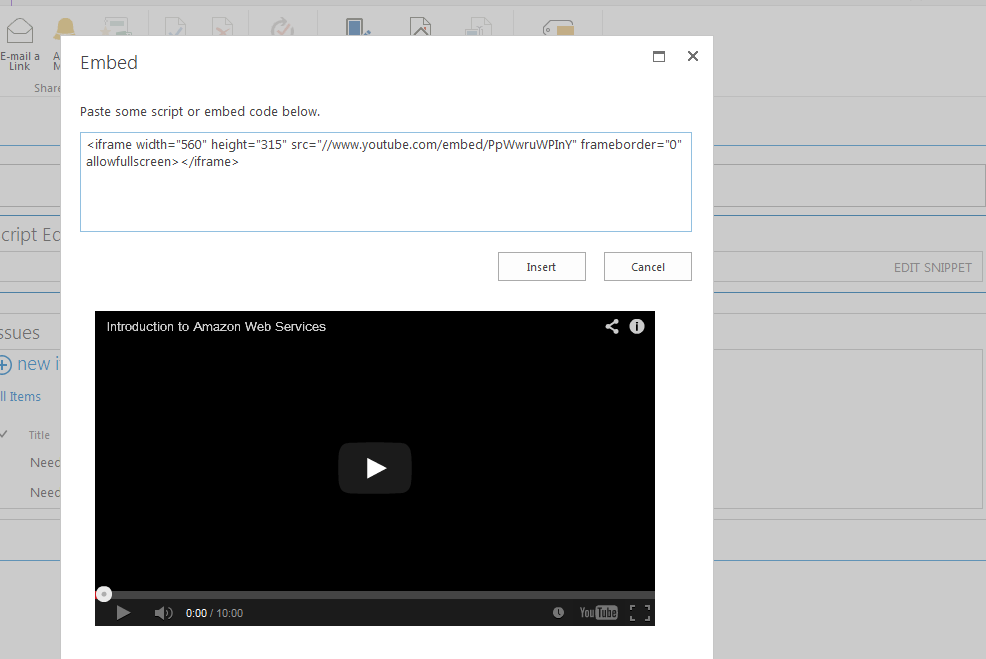
    3. Click on Edit Snippet on the Script editor web part, Paste the tag code.


   4.  Click on Insert, that’s it , your video will be available for play.


Happy SharePointing...:)

Share your images, videos online

Hey Guys, here is a good tool I found, which is useful especially when you work remotely with your colleagues, customers, friends, Jing captures anything you see on your computer screen, as an image or short video, and lets you share it instantly. ... Simply select any window or region that you want to capture, mark up your screenshot with a text box

http://www.techsmith.com/download/jing/

You can share your images, videos thru https://www.screencast.com/account.aspx


Tuesday, June 17, 2014

How to clear SharePoint Designer "Cache"

I've been experiencing the strange issues with SharePoint designer, and I’m keep deleting website cache from local machine , Sometimes SharePoint Designer asks to check out files that are not checked in, refuses to check in , SPD misbehaves with the below error message:
"Cannot perform this operation. The file is no longer checked out or has been deleted."

(OR) if you working with SPD workflows, you see this issue regularly. For example when you update the workflows , you might missed to get the updated content some times, the root cause is SPD cache.
Simply put, SharePoint Designer is out of sync with SharePoint and you have to delete its cache in order to rebuild it. The cache is composed of these 2 folders:
 Areas to clear:
1. Open Run Command and copy the below paths.
%APPDATA%\Microsoft\Web Server Extensions\Cache
%USERPROFILE%\AppData\Local\Microsoft\WebsiteCache\

and, also you can do the below settings.. 
SharePoint Designer 2010 and 2013
  1. Navigate to the "File" menu then select "Options" -> "General" -> "Application Options".
  2. On the “General” tab, under the “General” heading, uncheck “Cache site data across SharePoint Designer sessions”.
 SharePoint Designer


I found the solutions in few blogs but I 'm keep forgetting paths, even though I’m doing this job from SPD 2007 times, so I thought I'd better document it myself in blog.